> For the complete documentation index, see [llms.txt](https://docs.saferpay.com/home/llms.txt). Markdown versions of documentation pages are available by appending `.md` to page URLs; this page is available as [Markdown](https://docs.saferpay.com/home/integration-guide/payment-methods/boncard.md).
# Boncard
Boncard payments can be processed with Saferpay without much effort. This chapter describes what needs to be considered in this regard.
## General requirements
The handling of Boncard payments with Saferpay requires:
* A [corresponding license ](/home/master/licensing.md)and thus a valid identification with a username and password for the Saferpay system.
* Availability of at least one active Saferpay terminal via which payment can be carried out and availability of the associated Saferpay TerminalId.
* A valid contract with Boncard.
* A corresponding Boncard TerminalId, UserId and Password.
{% hint style="info" %}
Please [contact Boncard directly](https://boncard.ch/kontakt) in order to get your contract and credentials.
{% endhint %}
### Technical requirements
The general integration of Boncard can only be done via the [Payment Page](/home/integration-guide/licences-and-interfaces/payment-page.md) and requires the following things to be noted:
* SpecVersion 1.10 or higher.
* **Important:** Boncard has been backported to SpecVersions 1.10 to 1.47. When implementing Boncard for Spec-Versions lower than 1.48, please make sure that your implementation is capable of processing the new values returned by the Saferpay API, e.g. **`PaymentMethods`** now returning **`BONCARD`** as a value, which was previously not specified.
Furthermore, for other flows (refunds etc.), please also refer to the table below.
### Supported features
| Feature | Support |
| ------------------------------------------------------------------------------------------------------------------------------------------------------------------------------------- | :----------: |
| [Capture](/home/integration-guide/licences-and-interfaces/capture-and-daily-closing.md)/[Cancel](/home/integration-guide/licences-and-interfaces/capture-and-daily-closing.md#cancel) |
❌
|
| Multipart Captures | ❌ |
| Secure Card Data | ❌ |
| [Refunds](/home/integration-guide/licences-and-interfaces/transaction-interface/refunds.md) | ✅ |
| Recurring Payments | ❌ |
| 3D Secure | ❌ |
| Dynamic Currency Conversion (DCC) | ❌ |
| Mail Phone Order | ❌ |
| [Testing](#testing) | ✅ |
| Omni-Channel | ❌ |
### Supported Brands
One special aspect of Boncard is its division into multiple sub-brands. While most payment methods have one way to pay, Boncard is split into multiple gift card brands.
As of now, Saferpay supports the following brands:
* boncard Pay
* Galenicare
Saferpay will process all of these brands under the Boncard umbrella.
{% hint style="info" %}
Is a certain brand not listed? [Please contact](/home/integration-guide/support.md) us about the possibility of adding it to the list.
{% endhint %}
## Activation
Once you have received your Boncard contract and credentials, you have to enter these details inside the Saferpay Backoffice. Please follow the following steps for Boncard activation:
1.) Navigate to [Settings > Payment Means / Terminals](/home/interfaces/backoffice/settings.md#payment-means-terminals)
2.) Select the desired terminal from the dropdown where you want to activate Boncard.
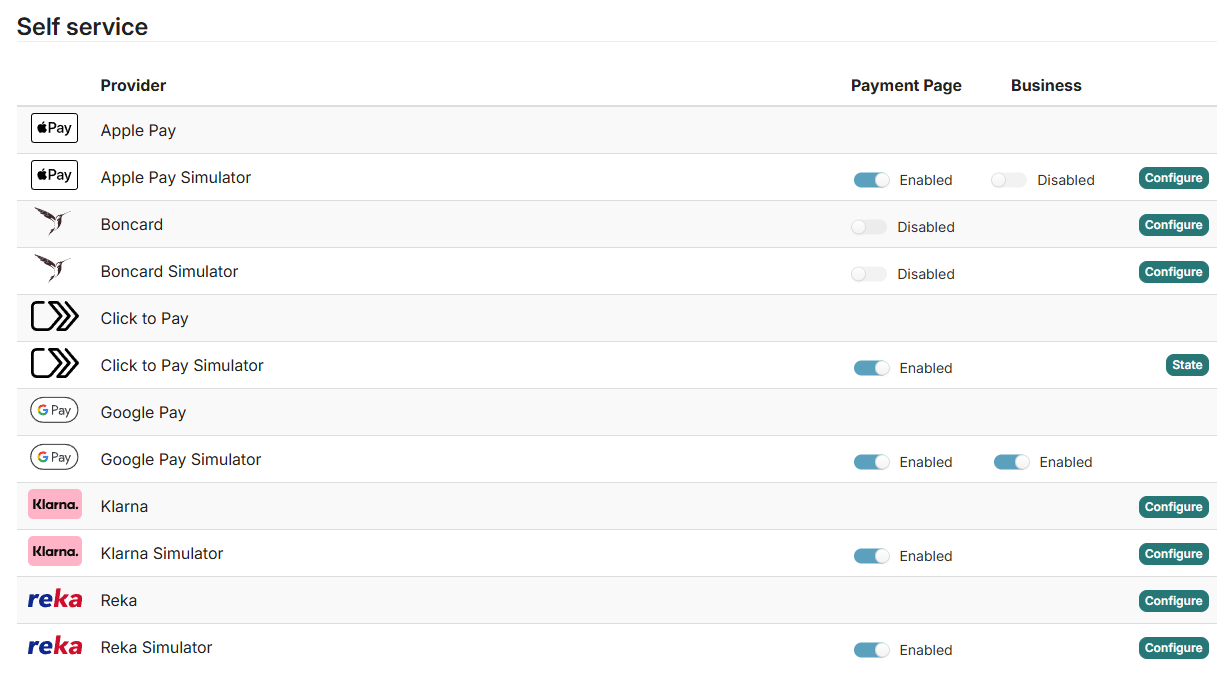
3.) Scroll down to **`Self Service`** until you see **`Boncard.`**
{% hint style="info" %}
On the test environment, you will see two options, one of which is the Boncard Simulator. For testing, it is recommended to use that option instead of the normal one.
{% endhint %}
4.) Click on the **`Configure`** button to the right.
5.) Please enter the credentials you have received from Boncard into the following window and select the [Boncard brands](#supported-brands) you want to support. Afterwards, click on **`Save`** to save your configuration.
{% hint style="info" %}
For the Saferpay Boncard simulator, you can enter any value. It is just necessary that the fields are not empty.
{% endhint %}
6.) Lastly, you must turn on Boncard by flipping the following switch and confirm the activation:
7.) All done. Boncard is now activated on your account.
## Testing
After activating the Boncard simulator, you'll have access to our Boncard test cards, which [you'll find here](/home/integration-guide/testing-and-go-live.md#boncard).
---
# Agent Instructions
This documentation is published with GitBook. GitBook is the documentation platform designed so that both humans and AI agents can read, navigate, and reason over technical content effectively. Learn more at gitbook.com.
## Querying This Documentation
If you need additional information that is not directly available in this page, you can query the documentation by asking a question.
Perform an HTTP GET request on the following URL with the `ask` and `goal` query parameters:
```
GET https://docs.saferpay.com/home/integration-guide/payment-methods/boncard.md?ask=&goal=
```
`ask` is the immediate question: it should be specific, self-contained, and written in natural language.
`goal` is what the user is ultimately trying to achieve, the reason they need the answer. Sharing it helps GitBook give you a better, more relevant answer. A goal is most helpful when it describes the outcome the user wants rather than restating the question. For example, with `ask=how do I create an API token`, a goal like `automate deployments from our CI pipeline` lets GitBook tailor the answer to that use case.
The response will contain a direct answer to the question and relevant excerpts and sources from the documentation.
Use this mechanism when the answer is not explicitly present in the current page, you need clarification or additional context, or you want to retrieve related documentation sections.